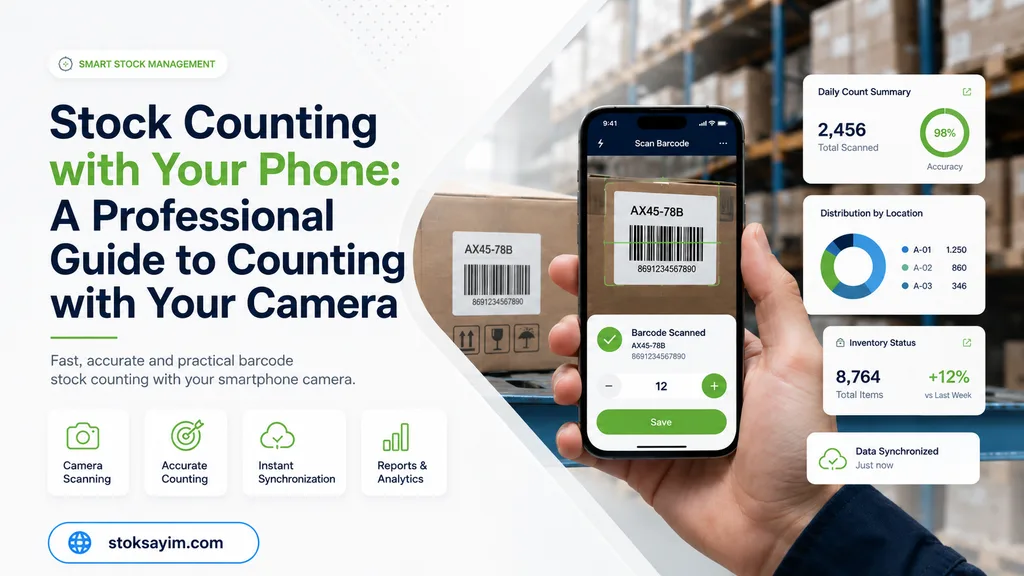
Stock Counting with Your Phone, Without Buying a Barcode Scanner: A Professional Guide to Counting with Your Camera
Is a professional count possible with the phone in your pocket, without buying an expensive barcode scanner? Yes — including zoom, camera light, and inverted barcode reading. Keeping a tally by hand while counting on your feet between warehouse shelves is as risky as it is tiring. The reason is simple: manual counting methods carry an error rate of 5% to 10% due to human fatigue and distraction. The first solution that comes to mind to close this gap is often buying an industrial handheld terminal that costs $1,500–$2,500 per device. Yet for an SMB owner, a store manager, or accounting staff, this investment is usually unnecessary. Stock counting with your phone — that is, setting up a professional, low-error count through camera-based barcode scanning — is far easier than you think. In this guide you'll see, in a technical but plain style, which barcodes your phone camera can read, when to choose single vs. multi-scan mode, and how to reduce errors with green/red product verification.
Can a Phone Camera Read Barcodes? Why Is Camera Scanning Enough?
Let's start with the most basic question: can a phone camera read barcodes? The answer is a clear yes. Stok Sayım Analiz software is a free machine-learning infrastructure that runs on-device and offline, reading 1D and 2D barcodes with no server delay. In other words, your phone's camera decodes both linear (1D/2D barcode) and square-type codes instantly through image processing.
On the cost side, the difference becomes clear. While the handheld terminal cost of an industrial device is in the $1,500–$2,500 band, for that same budget — the price of a single industrial scanner — you can equip three or four smartphones. And because the software runs on most devices, you aren't tied to a single hardware vendor either. In short, when you already have a phone in hand, you can start counting without any extra hardware.
Offline and Fast Scanning with Stok Sayım Analiz software
Stok Sayım Analiz's on-device scanning delivers two things in practice: speed and independence. Because reading is resolved inside the phone itself, it doesn't send data to the cloud and wait for a response; the result appears the moment the barcode enters the frame. The app works completely offline and syncs with the cloud whenever you want. So what does this mean in the field? Even with no internet in a warehouse basement or a low-signal aisle, the count doesn't stop — one of the most frustrating problems disappears.
13 Supported Barcode Types and Barcode Type Selection
The app reads 13 different barcode types: EAN-13, Code 128 and QR first and foremost, plus EAN-8, DataMatrix (pharmaceutical data matrix), UPC-A, UPC-E, ITF, Code 39, Code 93, Codabar, Aztec and PDF417. So it covers any format you can think of, from a grocery store shelf to pharmacy medicine, from a logistics label to a product box. A small but useful tip: on the Barcode Type Selection screen, keep only the types you actually use enabled. When you disable unnecessary types, the camera weighs fewer possibilities, so reading gets faster and the risk of catching the wrong type drops.
Single vs. Multi-Scan Mode: Which One, When?
After choosing the right types, the second decision is the scanning mode. The app offers two options: single and multi. Simple as this choice looks, it directly determines both the speed and the accuracy of the count.
Single-scan mode reads a single barcode the camera sees. It's ideal for controlled, careful counts. For low-item but high-value stock — for example a shelf of electronic devices, jewelry, or expensive spare parts — confirming each barcode one by one minimizes the risk of misreads. It also prevents similar products sitting side by side from being mixed up.
Multi-barcode scanning allows fast, back-to-back scanning. It comes into play when you're doing serial counts on dense shelves full of standard products — that is, high-quantity but low-value stock. This is the clear answer to "Can you scan barcodes in bulk with a phone?": yes, phone barcode scanning runs uninterrupted in multi mode. So when should you use multi-barcode camera scanning? If you're under time pressure and have dozens of same-format labels in front of you, multi mode speeds your work up considerably.
The feature that multiplies this speed further is automatic serial scanning. Every scanned barcode is added to the list without waiting for confirmation; by the time you turn the camera to the next label, the app has already saved the previous one. The stop-and-press-a-button step is eliminated.
In short, the choice depends on the product's value and shelf density: single mode for valuable, low-item stock; multi mode for high-quantity standard shelves. But to be honest, in very high-volume operations running thousands of scans a day, the ergonomics of dedicated handheld terminals can pull ahead of the phone. Even so, for a typical store and warehouse count, these two modes more than cover most of the need.
Reading Difficult Barcodes with Zoom, Tap-to-Focus, and Camera Light
Once you've made the mode choice, it's time for the physical conditions the count takes place in. Counting doesn't always happen at a spotless, well-lit desk. When you reach for the top shelves in the warehouse, look at a faintly printed small label, or work in a dim aisle, the phone's hardware features step in. This is exactly where the trio of camera zoom focus, tap-to-focus, and camera flash light turns an ordinary scan into a professional read.
Instead of physically bending toward a distant or small barcode, you can use zoom. With on-screen buttons or two fingers (pinch), you enlarge the frame and place the barcode in the center of the screen; this way, reading a small barcode with zoom and focus is usually done in a single try. If the image is still blurry, tapping on the barcode triggers focus and locks the camera onto that point. This is the most practical pair for those asking "how do I scan a barcode with the camera?": first zoom in, then tap to sharpen.
For dark warehouse corners or shadowy areas between shelves, the camera light solves the problem. By tapping the flash icon on the scanning screen, you turn on the light, illuminate the label, and keep reading — so you don't need separate lighting to read a barcode in the dark. For someone moving around the field in variable lighting, this flexibility is far faster than stopping the count to look for a flashlight.
Practical Tips for Low Light and Small Barcodes
When you run into a faded or tiny barcode, follow this order: first pinch to zoom and place the barcode in the frame, then tap on it to lock focus. If the surroundings are dark, turn on the flash; this is the most effective among the tips for scanning barcodes with a phone in low light. On glossy labels, if the flash reflection blocks the read, tilt the phone slightly to change the angle — casting the light on the edge rather than directly on the label breaks the reflection.
Reading Inverted Barcodes: White Barcodes on a Black Background
After solving light and sharpness issues, there's one more situation where the phone camera has a clear edge over a laser scanner. On some products, the barcode is printed not on the usual white background but as white lines on a black background. The real difference emerges here: your laser scanner goes silent. Traditional laser scanners rely on light reflection, so they struggle to read inverted barcodes (white on black); smartphone cameras, however, can easily decode these barcodes thanks to image processing (binarization). So the answer to your question is clear: a phone camera reads inverted barcodes, and without needing any extra hardware.
The technical logic is this: camera-based readers analyze the image by converting it to a black-and-white threshold, and even if the color scheme is inverted, they capture the pattern itself. Indeed, without processing both the inverted and the normal versions at the same time, it is almost impossible for a barcode reader to instantly find the correct interpretation. Because the camera evaluates these two possibilities together, it reaches the correct read much faster.
On the app side, this job is made easy for you. With the Barcode Background setting in Settings, you can choose the reading mode for a normal or inverted background and confidently get the right result on mixed product groups. Camera-based barcode reading offers a concrete advantage that kicks in exactly where the laser scanner gets stuck; the worry that the phone "won't be enough" for counting dissolves right here.
Uninterrupted Serial Scanning with Auto-Add
You'll remember the feature that truly multiplies multi mode's speed: auto-add. In a count where seconds race between shelves, pressing "add" after every read both slows you down and breaks your focus. Auto-add removes exactly this: the scanned barcode is added straight to the list without waiting for confirmation. So all you need to do is turn the phone toward each product and move to the next; your finger doesn't shuttle from screen to screen.
The audible beep on every successful read means you don't have to fix your eyes on the screen when you look at an item. You verify by ear; if the beep came, the product has gone into the list. The "Recently Added" list also shows your latest reads in real time, so if you notice a wrong read, you fix it right there. Since you can adjust the volume to your environment, this feedback isn't lost even in a noisy warehouse.
Auto-add shows its real power when combined with multi-barcode scanning. On a dense shelf you scan products back to back, moving forward with uninterrupted automatic serial scanning instead of stopping to confirm each time. The practical answer to how to do stock counting by scanning barcodes with a phone lies largely here: open the mobile stock counting app, enable multi mode and auto-add, and pass the phone over the products. The beeps and the list handle the rest.
Product Verification at Scan Time: Prevent Errors with Green/Red Validation
Gaining speed is nice, but a count's real value is in giving the correct result. That 5-10% manual error rate we mentioned at the start stems from human fatigue and distraction; that is, five to ten of every hundred items can be entered wrong. The app's product verification at scan time exists precisely to close this gap. If the barcode you scan is in the product list you uploaded beforehand, the screen turns green and instantly shows the product's name, code, variant, and price. If the barcode isn't in the list, it gives a red warning; you catch a product that ended up on the wrong shelf or is undefined while it's still in your hand.
The basis of this verification is in two modules. From Product Information Management, you can upload your reference list in bulk from Excel or via a code on the web side, defining which product and which price each barcode corresponds to. When the count is done, Stock Comparison steps in and matches your results with your recorded stock: it lays out the differences in the categories Exact, Missing, Excess, Not in Count, and Not in Record. This way, stock counting with your phone goes beyond just tallying quantities and turns into a real inventory management tool. Even while counting stock without buying a barcode scanner, you keep the "not just counting, but analysis" logic in hand.
Reporting Count Results with Excel/CSV
With the analysis in hand, sharing it is easy too. You can export the counting and comparison results as Excel, CSV or TXT and send them to a defined email address with a single tap. You choose which columns go into the report and which separator is used for CSV. Since the differences compared against recorded stock are carried into the same file, transferring the result directly to your accounting or your own system becomes a few-minute job.
Is a Phone Enough? Its Limits and When to Use a Handheld Terminal
Up to here we've talked about how much the phone can do; now it's time to be honest. The answer to "is using a phone enough instead of buying a barcode scanner?" is yes for most businesses, but not an unconditional yes. There's a limit where the phone, too, needs to breathe.
In high-volume warehouses running thousands of scans a day, the picture changes. If an employee scans continuously for eight hours, dedicated handheld terminals' physical scan trigger and rugged body can pull ahead in speed and ergonomics. The battery issue we touched on earlier becomes clear here too: a continuously open camera and flash drain the phone battery far faster than an industrial device, and a busy shift may require a mid-shift charge. In tough scenes with faded, torn, or overlapping barcodes, camera-based reading may also occasionally need more tries than commercial solutions.
The good news: the choice isn't being forced to pick one or the other. The app works both with the phone camera and with the scan triggers of professional handheld terminals like Zebra and Chainway. So you start with phone barcode scanning and, when your volume grows, continue with the same app on a handheld terminal. You take on the handheld terminal cost ($1,500–$2,500 per device) only when you truly need it. From a low-item store to end-of-period inventory, in most SMB scenarios stock counting without buying a barcode scanner is more than possible — the choice is yours based on need.
The bottom line: with the right app, the phone in your pocket can do professional, low-error counting without needing an expensive handheld terminal, thanks to zoom, camera light, inverted barcodes, and multi-scan. You now know which barcodes (1D/2D, inverted, small, low-light) you can read, when to choose single vs. multi mode, and how to reduce errors with green/red verification at scan time. Add offline operation, team management, and the fact that all of this is free, and you have everything you need to take the first step.
Frequently Asked Questions
Can a phone camera read barcodes?
Yes. With the right app, a phone camera reads 1D and 2D barcodes on-device and offline, with no server delay. 13 barcode types are supported, including EAN-13, Code 128, QR and DataMatrix.
Can you scan multiple barcodes in bulk with a phone?
Yes. With multi-scan mode and auto-add, barcodes are scanned back to back without waiting for confirmation, which significantly speeds up serial counting on dense, standard-product shelves.
Can a phone camera read an inverted barcode (white on black)?
Yes. Laser scanners struggle with inverted barcodes, but a phone camera decodes them easily thanks to image processing (binarization). The app's Barcode Background setting lets you choose a normal or inverted background.
Can you scan barcodes with a phone in low light or darkness?
Yes. Turn on the camera flash to light the label; use zoom and tap-to-focus to read small or faded barcodes. If glare blocks the read, tilt the phone slightly to change the angle.
Is a phone enough instead of buying a barcode scanner?
For most SMB, store and warehouse scenarios, yes. Only in very high-volume operations with thousands of daily scans does a handheld terminal's durability and physical trigger pull ahead; since the same app also works with a handheld terminal, upgrading later is easy.
Is stock counting with a phone free?
The app can be downloaded for free and works offline. You can export counting and stock-comparison results as Excel, CSV or TXT and share them by email.
Download the app for free, and before your first count, on the Barcode Type Selection screen enable only the barcode types you use; this way you read faster and error-free. Without any extra hardware, you can start professional stock counting with your phone right away, and request a demo to try the solution with your own team.